
Order filters allow you to filter customers based on certain criteria about the purchases they've made. Everhort offers the following types of order-level filters:
- Product Collections
- Product Name
- Product Type
- Product Properties
- Discounts
Product Collections
If you've imported your data by connecting one of our automated store integrations, such as Shopify, then you will have product collection filters available in your account automatically:
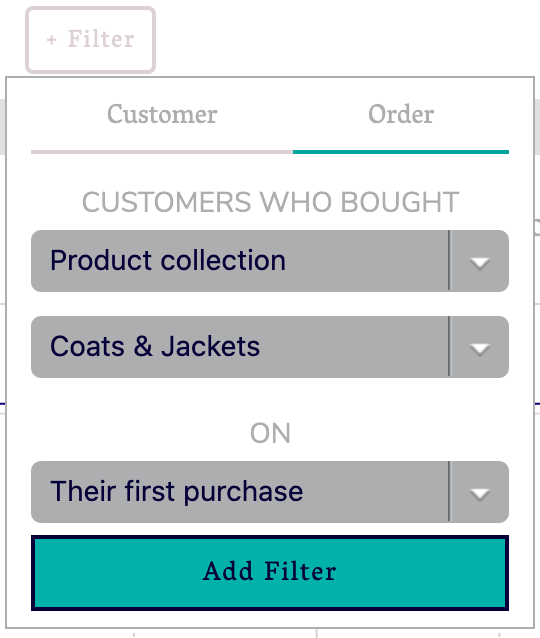
The list of available collections, along with the mappings from those collections to their products, will be updated with each automated daily import of your data from your store.
Selecting a collection filter will restrict reports to customers who purchased a product from the given collection.
Product Name
Choose one or more products using the type-ahead dropdown to show results for only those customers who have purchased one of those products. Product name filters are available automatically if you've connected your store using one of our automated connections.
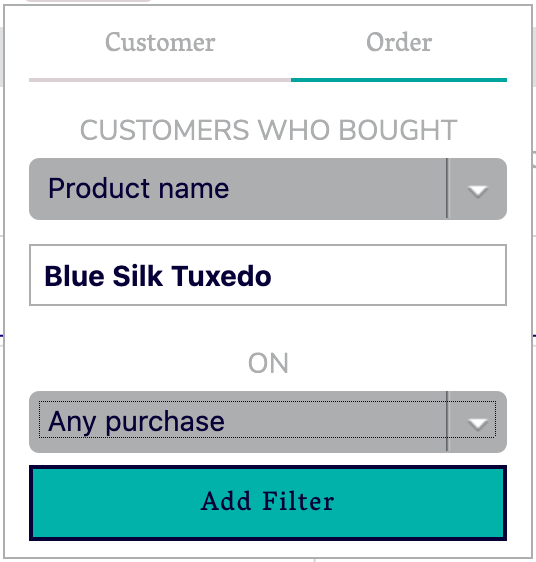
For all order-level filters, you have the option of specifying whether the filter should include customers who made the purchase on "any purchase," "their first purchase," or "a subsequent purchase."
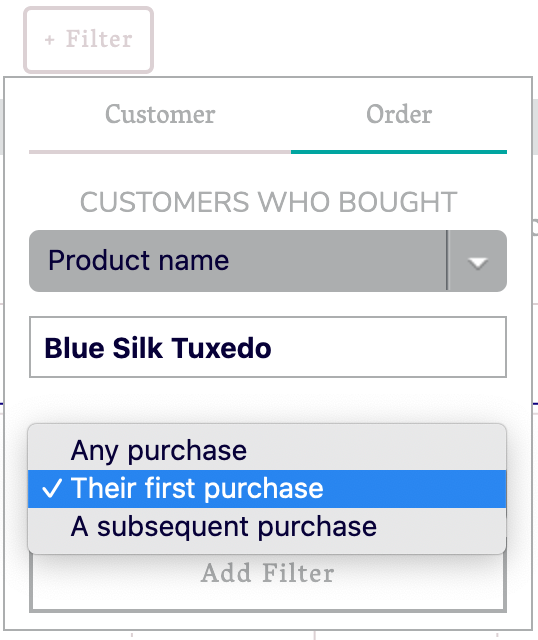
Selecting "Their first purchase" will restrict the filter to only those customers making the indicated purchase on their first order (if they made the purchase again later, that's ok). Selecting "A subsequent purchase" will restrict the filter to only those customers making the indicated purchase on an order placed after their initial purchase (if they made the purchase on their first purchase also, that's ok).
Product Type
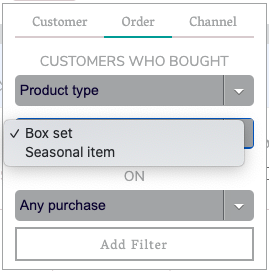
If you have populated the product type field in your eCommerce system, then this field will be available for filtering on.
Product Properties
Sometimes orders in your eCommerce system will have various properties associated with them. If your store has such properties, and you've used one of our automated integrations to connect it, then you can use several different matcher types to filter customers based on their purchase histories:
Equals
This matcher will restrict results to customers who have at least one purchase where the property name exactly matches the selected value.
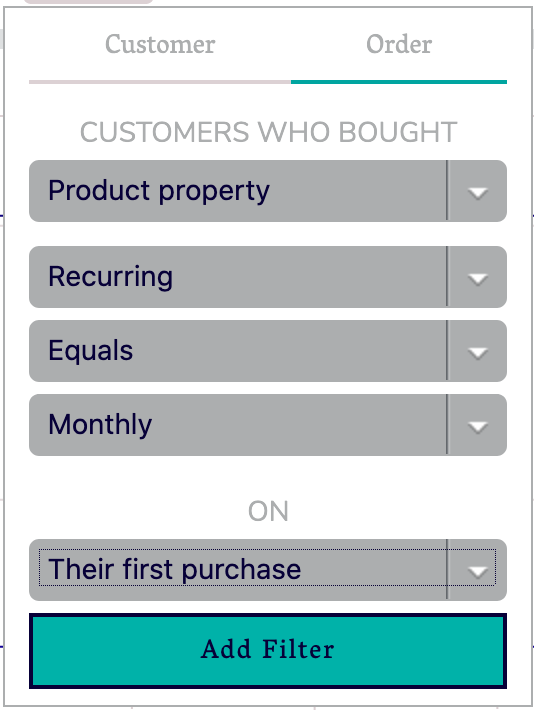
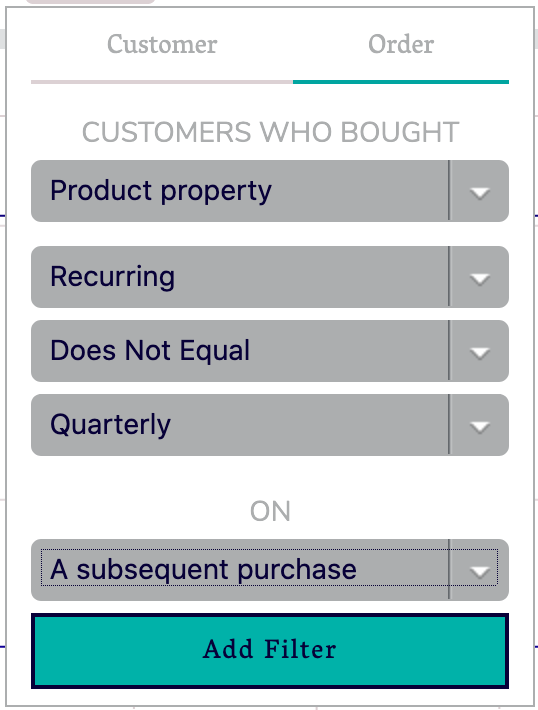
Does Not Equal
This matcher will restrict results to customers who have at least one purchase where the property does not exactly match the selected value.
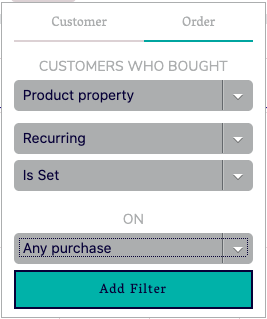
Is Set
This matcher will restrict results for customers who have at least one purchase where the property is set to any value.
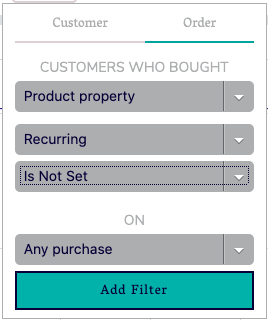
Is Not Set
This matcher will restrict results to customers who have at least one purchase where the property is not set to any value.
Discounts
Everhort provides several different ways to filter cohorts by customers have purchased using a discount.
Customers Using Any Discount
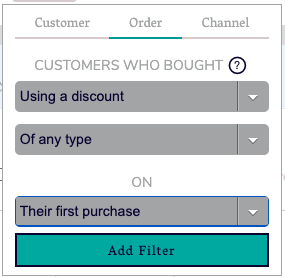
You may select this filter to capture all customers who've used any type of discount. As with all order filters, you may also apply the condition to the first order, a subsequent order, or any order:
Customers Using Free Shipping
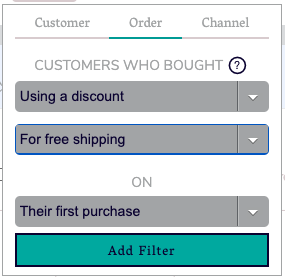
You may select this filter to capture all customers who have received a discount for free shipping:
Customers Using a Discount Code
For more granular control over discount filtering, you may select the option to filter by customers using a discount code, and then search for the discount code you want to filter on:
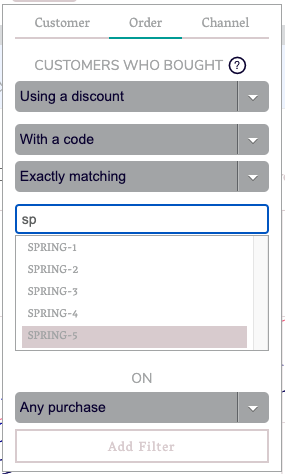
Typing in the box will do a live search for all codes beginning the text you've entered (up to 100).
If you want to match a particular discount exactly, leave the "Exactly matching" option selected.
If you have discounts that follow a particular pattern and you want to include customers using any of those discounts, select the "Starting with" matcher option and then select the entry for the text you've typed (always the first entry) as shown below:
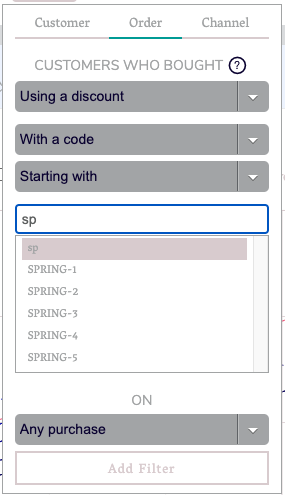
In this example, selecting "sp" will match all customers using a discount that started with the letters "sp."